
Basic Templates: how to use it in CutStory
A video in a couple of taps.
Where to find it: Templates tab → Basic Templates
Step by step
1 Ready-made templates a video in a couple of taps
Pick a ready-made recipe — the cuts, music and effects are already put together for you.
2 Collections for every occasion
Trends, travel, holidays, music — swipe through the categories and open the one that fits.
3 Your photos and videos inside the template
Drop your own shots into the scenes — the timing and transitions adjust automatically.
4 A template is just the start edit everything after
The finished project opens in the editor: change the text, music and clip order.
5 A finished video ready for your feed
Save it to your gallery or post it to TikTok and Instagram right from the app.
Tips
- A template is only the start: text, music and clip order can be changed in the editor.
Related guides
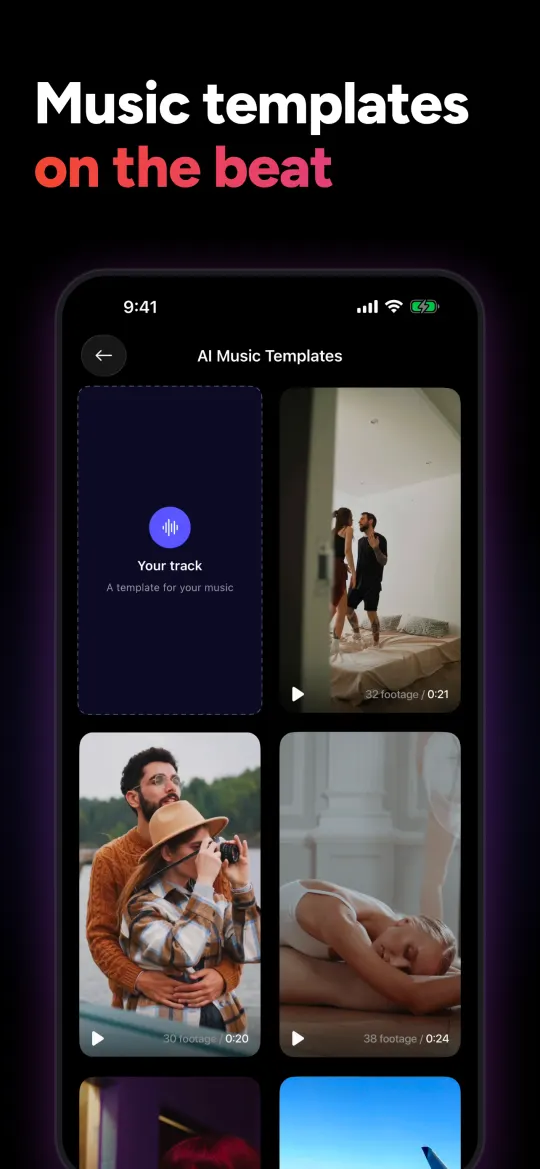
AI Music TemplatesYour media in a ready-made music editYour trackCut to the beat of your own trackMy TemplatesSave an edit and reuse it
Checked on CutStory 8.8.1, 2026-11-24. Still stuck? Write to us in Telegram or at support@highglossy.com.