
Clip editing: how to use it in CutStory
Trim, split, speed, filters, transitions.
Where to find it: Editor → tap a clip on the timeline
Step by step
1 Tap a clip to open its tools
Tap any clip on the timeline: a menu appears below with trim, split, speed, volume, filters and more.
2 Trim and split in a couple of taps
Drag the clip edges to trim it. Move the playhead to the right spot and tap Split — the clip becomes two.
3 Speed from slow-mo to time-lapse
Pick a speed for the selected clip: slower makes it longer on the timeline, faster — shorter. Each clip has its own.
4 Volume and filters for every clip
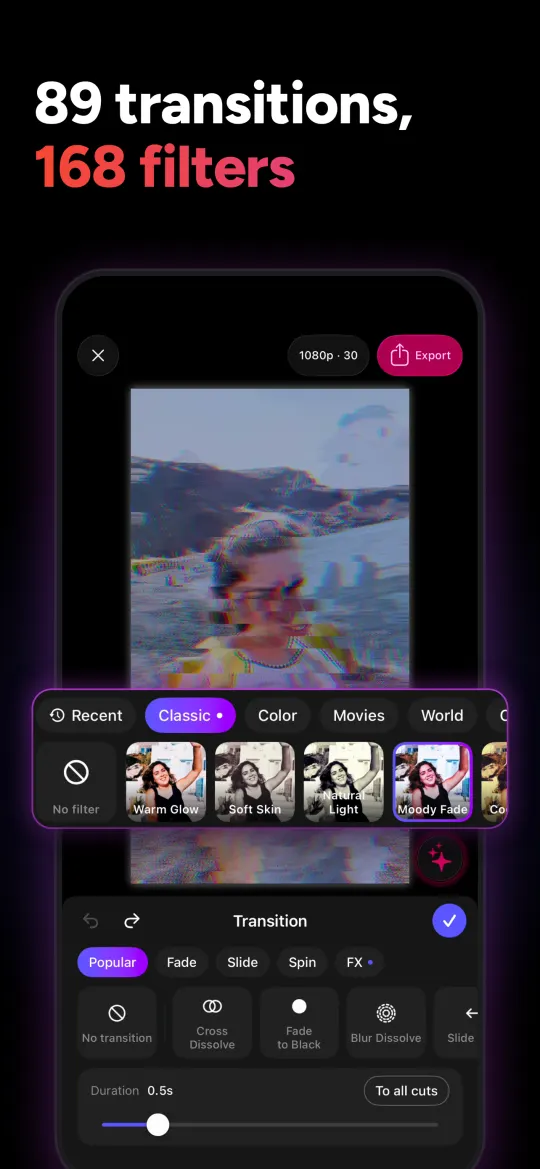
Volume mutes or boosts the sound of a single clip. Filters add a color look — to this clip or to all of them.
5 Transitions between clips
Tap the button on the seam between two clips, choose a transition — and apply it to all seams at once.
Tips
- Each clip has its own speed — slow one moment down without touching the rest.
Related guides
Format & backgroundStories from a horizontal video: ratio, background, zoomVideo over video (PiP)Overlay a clip or photo on top of the videoMusic & voiceAdd a track, trim it, record a voice-over
Checked on CutStory 8.8.1, 2026-11-24. Still stuck? Write to us in Telegram or at support@highglossy.com.