
Subtitles: how to use it in CutStory
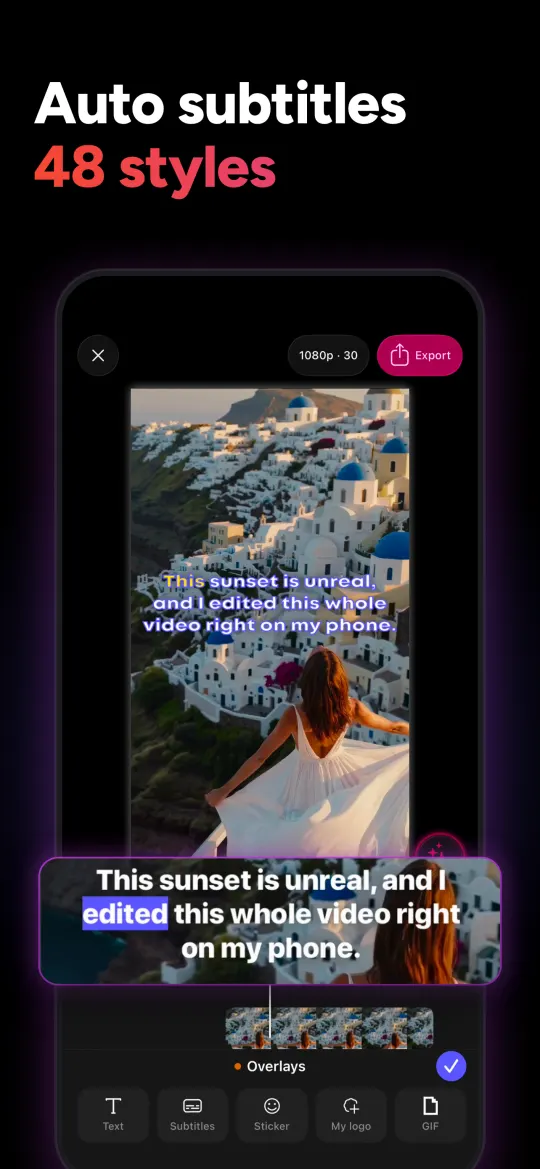
Auto-recognized captions for your video.
Where to find it: Home → Subtitles
Step by step
1 Subtitles straight from speech
The app listens to the audio track and lays the text out in sync — no typing required.
2 Your language and recognition model
Pick the spoken language and how to recognise it: on-device is fast and works offline, server AI is more accurate.
3 Styling that fits the trends
Font, colour, background and active-word highlight — your style is kept for the next videos.
4 Text and timing stay under your control
Rewrite any phrase, then drag or stretch its subtitle block right on the timeline.
5 Most people watch with the sound off
Subtitles keep your video clear in a muted feed — and viewers watch it to the end.
Tips
- No internet? Choose on-device recognition — it works offline.
- Set the spoken language before recognition; a wrong language gives wrong words.
Related guides
Quick CutSplit a long video into clips in secondsExport & cuttingSave a video as ready-made storiesText & stickersCaptions, stickers, GIFs and your logo
Checked on CutStory 8.8.1, 2026-11-24. Still stuck? Write to us in Telegram or at support@highglossy.com.